# Advanced HTML reporting using PowerShell
I’ve been using HTML reporting in PowerShell for a while. Initially, I would usually build HTML by hand, but the time spent trying to figure out what works and what doesn’t drive me mad. With the PSWriteHTML module, a lot has changed. With just a few PowerShell lines, I can create feature-rich reports that change how I show data to my Clients. Today I wanted to show you some advanced HTML reporting without actually complicating PowerShell code. In the last few months, I’ve added many features that create advanced reports without sacrificing readability.
blog
16 Mar 2021 pl
[Zobacz obrazy (21)](#pf-content-image-1-0)
I've been using **HTML reporting in PowerShell** for a while. Initially, I would usually build **HTML** by hand, but the time spent trying to figure out what works and what doesn't drive me mad. With the [PSWriteHTML](https://github.com/EvotecIT/PSWriteHTML) module, a lot has changed. With just a few PowerShell lines, I can create feature-rich reports that change how I show data to my Clients. Today I wanted to show you some advanced **HTML reporting** without actually complicating PowerShell code. In the last few months, I've added many features that create advanced reports without sacrificing readability.
### 💡 Alphabet Search in HTML Tables
One of the cool features added recently is **Alphabet Searc**h. With a single switch, you're now able to search using letters alphabet over the table quickly.
```powershell
$Users = Get-ADUser -Filter * -Properties LastLogonDate, PasswordLastSet
New-HTML {
New-HTMLTable -DataTable $Users -Title 'Table with Users' -HideFooter -PagingLength 10 -AlphabetSearch
} -ShowHTML -FilePath "$PSScriptRoot\Example-1.html" -Online
```
[!\[Alphabet Search HTML Table\](/wp-content/uploads/2021/03/img_604e1d913559b.png)](/wp-content/uploads/2021/03/img_604e1d913559b.png)
Since my first column is based on **DistinguishedName**, it starts with the **letter C** all the time, so it doesn't make a good example to show its use case. Fortunately, we're able to configure a little to define **ColumnName**, **CaseSensivitity**, or adding **numbers**. This is done using **New-TableAphabetSearch** within **New-HTMLTable**.
```powershell
$Users = Get-ADUser -Filter * -Properties LastLogonDate, PasswordLastSet
New-HTML {
New-HTMLTable -DataTable $Users -Title 'Table with Users' -HideFooter -PagingLength 10 -AlphabetSearch {
New-TableAlphabetSearch -ColumnName 'Name'
}
} -ShowHTML -FilePath "$PSScriptRoot\Example-1.html" -Online
```
[!\[Alphabet Search HTML Table\](/wp-content/uploads/2021/03/img_604e1e75ca0d2.png)](/wp-content/uploads/2021/03/img_604e1e75ca0d2.png)
As you can see, when you hover over the letter, it also shows you how many rows start with the letter we're hovering over. By adding the **CaseSensitive** switch and **AddNumbers** switch, we change how search works.
```powershell
$Users = Get-ADUser -Filter * -Properties LastLogonDate, PasswordLastSet
New-HTML {
New-HTMLTable -DataTable $Users -Title 'Table with Users' -HideFooter -PagingLength 10 -AlphabetSearch {
New-TableAlphabetSearch -ColumnName 'Name' -CaseSensitive -AddNumbers
}
} -ShowHTML -FilePath "$PSScriptRoot\Example-1.html" -Online
```
[!\[Alphabet Search for HTML with case sensitivity and numbers via DataTables\](/wp-content/uploads/2021/03/img_604e1ede0a32c.png)](/wp-content/uploads/2021/03/img_604e1ede0a32c.png)
### 💡 Search Panes in HTML Tables
Another feature that can be useful is Search Pane. By adding the **SearchPane** switch to New-HTMLTable, you're able to get advanced filters on top of the table.
[!\[Search Pane HTML Reporting DataTables\](/wp-content/uploads/2021/03/img_604e20825776f.png)](/wp-content/uploads/2021/03/img_604e20825776f.png)
**Search Panes** are also available as part of buttons. By default, those would not be visible, but you can easily enable them when the time comes. This is doable using the **Buttons** property, where you define which buttons will be visible. In this case, I'm only requesting to add export to the Excel button and **Search Panes**.
```powershell
$Users = Get-ADUser -Filter * -Properties LastLogonDate, PasswordLastSet
New-HTML {
New-HTMLTable -DataTable $Users -Title 'Table with Users' -HideFooter -PagingLength 10 -Buttons excelHtml5, searchPanes
} -ShowHTML -FilePath "$PSScriptRoot\Example-SearchPane02.html" -Online
```
When the user presses, the button, **Search Panes**, will appear on top of the table, as shown below.
[!\[HTML Search Panes in DataTables via PowerShell\](/wp-content/uploads/2021/03/img_604e214fe9724.png)](/wp-content/uploads/2021/03/img_604e214fe9724.png)
Search Panes have big potential, but I've not spent a lot of time exposing configuration options for them leaving it on its defaults.
### 💡 Search Builder in HTML Tables
Search Builder is the coolest of the mentioned options above. With just one switch you get one little button.
```powershell
$Users = Get-ADUser -Filter * -Properties LastLogonDate, PasswordLastSet
New-HTML {
New-HTMLTable -DataTable $Users -Title 'Table with Users' -HideFooter -PagingLength 10 -SearchBuilder
} -ShowHTML -FilePath "$PSScriptRoot\Example-Builder.html" -Online
```
[!\[Search Builder in HTML Tables PowerShell\](/wp-content/uploads/2021/03/img_604e248dded79.png)](/wp-content/uploads/2021/03/img_604e248dded79.png)
The magic starts when you press it. You're able to search and filter different columns using multiple conditions.
[!\[Animated Search Builder demo filtering a PSWriteHTML DataTable with multiple conditions\](/wp-content/uploads/2021/03/SearchBuilderDataTablesHTML.gif)](/wp-content/uploads/2021/03/SearchBuilderDataTablesHTML.gif)
When you choose any property, it will prefill the search field with data from the chosen column. Isn't it amazing?! I'm adding it to every single report now! I've not added many possible options for SearchBuilder for now, but it should be possible to add preset filters in the future. This would allow for displaying the full dataset yet provide already prefiltered data. If you would be interested in such functionality, do let me know on [GitHub](https://github.com/EvotecIT/PSWriteHTML).
### 💡 PSWriteHTML Performance Improvements
Those search-improving features are just a tip of an iceberg of what was added in the last few months. One of the things I worked on was performance when working with huge datasets. You see, working with one table having 300 users with 30 fields each is a no-brainer. Even a basic **ConvertTo-HTML** cmdlet with some CSS can be used and display that data. The problems start when you have to display 50000 users, 50000 permissions, or any other data type. What makes it even more complicated if you have five or more tables with the same amount of data. While it may not seem a lot, **50000 objects** within a table can generate an **80MB HTML file**. I'm sometimes working with data with as much as **250MB** in a** single HTML file**. If you ever tried to open an **HTML** file of such size generated in earlier versions of **PSWriteHTML,** it would make your browser want to explode. So what does the new version adds? **New-HTMLTableOption** cmdlet was added that allows you to control how data for a table is written in **HTML**. By default when the table is created it uses **HTML** tags. Using **New-HTMLTableOption** allows you to change how data is stored – you can choose **HTML**, **JavaScript**, or **AjaxJSON**.
```powershell
$Users = Get-ADUser -Filter * -Properties LastLogonDate, PasswordLastSet
New-HTML {
New-HTMLTableOption -DataStore JavaScript
New-HTMLTable -DataTable $Users -Title 'Table with Users' -HideFooter -PagingLength 10 -SearchBuilder
} -ShowHTML -FilePath "$PSScriptRoot\Example-Builder.html" -Online
```
This little change forces **PSWriteHTML** to generate a table's content as JavaScript data rather than a typical HTML table. This, in turn, with few other features that **DataTables** provides (that I enable by default), allows for storing a large amount of data without impact on performance. Similarly, the function can also set **DataStore** to **AjaxJSON**, which would save datasets for tables in **separate JSON files**. This means **HTML** only contains data to configure the table, but the data itself is stored outside of **HTML**. While it's a nice feature, it requires a WEB Server to work. This can work when you host pages generated by **PSWriteHTML** somewhere but is quite useless for portable usage. It's important to know that whether this is HTML or JavaScript store, the differences are small and should not affect how your tables look. From a performance perspective, it's a game-changer, though. While working on that functionality, I had to write my own **ConvertTo-JSON** cmdlet because of PowerShell's limitations in the native versions. Since I now was in control of how data is written to **JSON/JavaScript** configuration, I could add few more features using the same cmdlet. When pushing data to **HTML**, many of my problems were how arrays or dates were shown and how I had no control. Usually, if I wanted to be sure how my dates are displayed in **HTML**, I would need to do preparations outside of **PSWriteHTML**. In the case of arrays, it was the same. Not anymore!
```powershell
$Users = Get-ADUser -Filter * -Properties LastLogonDate, PasswordLastSet
New-HTML {
New-HTMLTableOption -DataStore JavaScript -DateTimeFormat 'dd.MM.yyyy HH:mm:ss' -ArrayJoin -ArrayJoinString ','
New-HTMLTable -DataTable $Users -Title 'Table with Users' -HideFooter -PagingLength 10 -SearchBuilder
} -ShowHTML -FilePath "$PSScriptRoot\Example-Builder.html" -Online
```
Using **New-HTMLTableOption** and **JavaScript** store, you can force which time format **DataTime** objects are written in the HTML and how arrays are treated. Consider this small example
```powershell
$Objects = @(
[PSCustomObject] @{ Name = 'Przemek'; Tags = 'PowerShell', 'IT', 'SomethingElse'; Value = 15; Date = (Get-Date).AddYears(-20) }
[PSCustomObject] @{ Name = 'Adam'; Tags = 'Rain', 'MorseCode'; Value = 30; Date = (Get-Date).AddYears(-20) }
)
New-HTML {
New-HTMLTable -DataTable $Objects -Title 'Table with Users' -HideFooter -PagingLength 10 -SearchBuilder
} -ShowHTML -FilePath "$PSScriptRoot\Example-TableOptions.html" -Online
```
[!\[Standard DataTable HTML Store\](/wp-content/uploads/2021/03/img_604e6503a93e9.png)](/wp-content/uploads/2021/03/img_604e6503a93e9.png)
As you can see, the Tags property was not displayed properly, and **DateTime** has a date pattern from a computer that generated it. Thanks to **New-HTMLTableOption**, you're now able to control this behavior.
```powershell
$Objects = @(
[PSCustomObject] @{ Name = 'Przemek'; Tags = 'PowerShell', 'IT', 'SomethingElse'; Value = 15; Date = (Get-Date).AddYears(-20) }
[PSCustomObject] @{ Name = 'Adam'; Tags = 'Rain', 'MorseCode'; Value = 30; Date = (Get-Date).AddYears(-20) }
)
New-HTML {
New-HTMLTableOption -DataStore JavaScript -DateTimeFormat 'yyyy.MM.dd' -ArrayJoin -ArrayJoinString ','
New-HTMLTable -DataTable $Objects -Title 'Table with Users' -HideFooter -PagingLength 10 -SearchBuilder
} -ShowHTML -FilePath "$PSScriptRoot\Example-TableOptions.html" -Online
```
[!\[PSWriteHTML table showing arrays and dates formatted correctly after using New-HTMLTableOption\](/wp-content/uploads/2021/03/img_604e660ba61ee.png)](/wp-content/uploads/2021/03/img_604e660ba61ee.png)
This means you don't have to worry about the array not having the proper format, and you can control date output the way your organization needs. While this feature is mostly used in **JavaScript**, I've also ported it back to **HTML**. This means that also for **HTML**, you can now **force Arrays** to become string connected by defined char or have a **DateTime** that suits you. It's especially required for sources where JavaScript can't be used, such as emails.
```powershell
New-HTML {
New-HTMLTableOption -DataStore HTML -DateTimeFormat 'yyyy-MM-dd' -ArrayJoin -ArrayJoinString ','
New-HTMLTable -DataTable $Objects -Title 'Table with Users' -HideFooter -PagingLength 10 -SearchBuilder
} -ShowHTML -FilePath "$PSScriptRoot\Example-TableOptions.html" -Online
```
What's important to know, especially for dealing with DateTime formats, is that both **PowerShell (.NET)** and **JavaScript** differently handle date to string formatting. **New-HTMLTableOption** does the conversion of dates using PowerShell – before it is written to file, so in this case, any date-time format used must be the way **PowerShell** deals with it. However, any HTML functionality (when used in browser) such as sorting or conditional formatting works with **JavaScript-based DateTime formatting. **In that case, you need to remember to use **JavaScript Date Format**. There is one exception to this rule – **Conditional Formatting** with an **Inline** switch. **Inline switch** forces conditional formatting to be done on the PowerShell level, which is useful for emails that don't have JavaScript functionality. Time generation is impacted, but full functionality is available. **Conditional formatting without** **an inline** switch adds few code lines to generated **HTML,** and the comparison is made on the **HTML** level when displaying it on screen. I know it may be confusing but trying to get those two **DateTime formats** into a single one is too big an effort with many risks that I don't want to take. At least not at this point. To show you how to date sorting of 3 different types is handled, you can see this example.
```powershell
$DataTable1 = @(
[PscustomObject] @{ DateTest = '2027-09-12'; DateUS = '3/31/2020'; Dates = (Get-Date).AddDays(2); BoolAsString = 'true'; BoolTest = $true; Test = 'ABC'; Test2 = 'Name1'; Test3 = 'Name3'; 'Test4' = 1 }
[PscustomObject] @{ DateTest = '2021-01-12'; DateUS = '3/23/2020'; Dates = (Get-Date).AddDays(0); BoolAsString = 'false'; BoolTest = $false; Test = 'Opps'; Test2 = 'Name2'; Test3 = 'Name2'; 'Test4' = 2 }
[PscustomObject] @{ DateTest = '1982-08-15'; DateUS = '3/5/2020'; Dates = (Get-Date).AddDays(-7); BoolAsString = 'false'; BoolTest = $null; Test = 'Oh No'; Test2 = 'Name3'; Test3 = 'KitKat'; 'Test4' = 3 }
[PscustomObject] @{ DateTest = '2021-03-12'; DateUS = '4/5/2020'; Dates = (Get-Date).AddDays(13); BoolAsString = 'null'; BoolTest = $true; Test = 'Name'; Test2 = 'Name4'; Test3 = 'Name3'; 'Test4' = 0 }
[PscustomObject] @{ DateTest = '2021-03-12'; DateUS = '3/15/2020'; Dates = (Get-Date).AddDays(5); BoolAsString = 'true'; BoolTest = $false; Test = 'Name'; Test2 = 'Name5'; Test3 = 'Name4'; 'Test4' = $null }
[PscustomObject] @{ DateTest = '2025-01-17'; DateUS = '3/5/2020'; Dates = (Get-Date).AddDays(0); BoolAsString = 'True'; BoolTest = $false; Test = 'Name'; Test2 = 'Name2'; Test3 = 'KitKat'; 'Test4' = 10 }
[PscustomObject] @{ DateTest = '2021-03-12'; DateUS = '7/5/2020'; Dates = (Get-Date).AddDays(21); BoolAsString = 'true'; BoolTest = $true; Test = 'Name'; Test2 = 'Name2'; Test3 = 'Bounty'; 'Test4' = 5 }
[PscustomObject] @{ DateTest = '2021-12-12'; DateUS = '12/5/2021'; Dates = (Get-Date).AddDays(5); BoolAsString = 'True'; BoolTest = $true; Test = 'Name'; Test2 = 'Name2'; Test3 = 'Test'; 'Test4' = 0 }
)
New-HTML {
New-HTMLTableOption -DataStore HTML -ArrayJoin -BoolAsString
New-HTMLTable -DataTable $DataTable1 -DateTimeSortingFormat 'DD.MM.YYYY HH:mm:ss', 'M/D/YYYY', 'YYYY-MM-DD'
} -ShowHTML -FilePath $PSScriptRoot\Example-DateTimeSorting.html -Online
```
[!\[Sorting multiple date ranges\](/wp-content/uploads/2021/03/img_6050aef7ccf63.png)](/wp-content/uploads/2021/03/img_6050aef7ccf63.png)
Sorting is smart enough to figure out which column has which date and act accordingly.
### 💡 Conditional Formatting in HTML Tables using PowerShell
Since I've mentioned this above – I guess you already know that I've improved **Conditional Formatting** to support the **DateTime** type. But that's not all of the improvements. I've rewritten the way conditional formatting is generated and dealt with and added many options while doing so.
```powershell
$Users = Get-ADUser -Filter * -Properties LastLogonDate, PasswordLastSet
New-HTML {
New-HTMLTable -DataTable $Users -Title 'Table with Users' -HideFooter -PagingLength 10 -SearchBuilder {
} -DateTimeSortingFormat 'DD.MM.YYYY HH:mm:ss', 'M/D/YYYY', 'YYYY-MM-DD'
} -ShowHTML -FilePath "$PSScriptRoot\Example-TableConditions.html" -Online
```
The first thing to know is that **DateTimeSorting** can take multiple **DateTime** formats. This makes it **possible to have 2 or more different date formats** in the same table, and JavaScript will detect which one is in which column and should apply the proper formatting.
[!\[PSWriteHTML table with conditional formatting applied to mixed date columns\](/wp-content/uploads/2021/03/img_60507c01e0beb.png)](/wp-content/uploads/2021/03/img_60507c01e0beb.png)
By using **ComparisonType date** and providing expected **DateTimeFormat,** we can easily add styling to our table.
```powershell
$Users = Get-ADUser -Filter * -Properties LastLogonDate, PasswordLastSet
New-HTML {
New-HTMLTable -DataTable $Users -Title 'Table with Users' -HideFooter -PagingLength 10 -SearchBuilder {
$DateGreaterLogon = (Get-Date -Year 2019 -Month 1 -Day 1)
New-HTMLTableCondition -Name 'LastLogonDate' -ComparisonType date -Operator gt -Value $DateGreaterLogon -BackgroundColor AlmondFrost -DateTimeFormat 'DD.MM.YYYY HH:mm:ss'
} -DateTimeSortingFormat 'DD.MM.YYYY HH:mm:ss', 'M/D/YYYY', 'YYYY-MM-DD'
} -ShowHTML -FilePath "$PSScriptRoot\Example-TableConditions.html" -Online
```
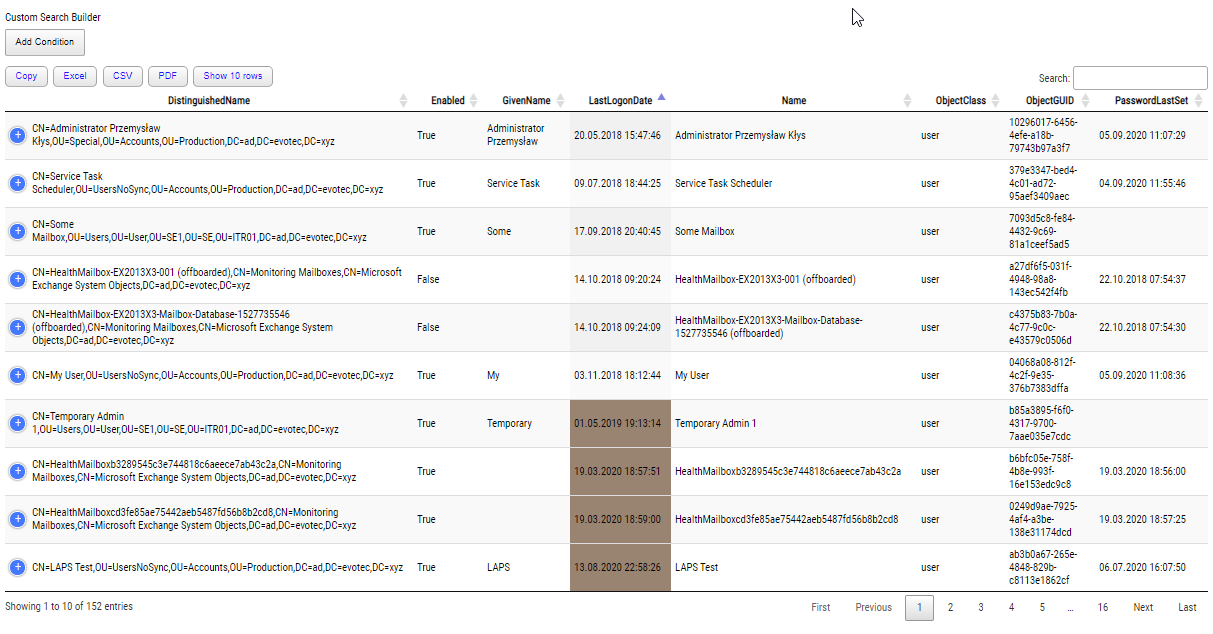
[!\[Table Conditions in HTML PowerShell\](/wp-content/uploads/2021/03/img_60507d69ce08f.png)](/wp-content/uploads/2021/03/img_60507d69ce08f.png)
Another cool new feature that improves conditional formatting is that you're no longer bound to highlighting the column that contains the data or whole row, but now you can also choose what to highlight. Using the **HighlightHeaders** parameter, you can **provide one or more column names **that will be styled when a match is found.
```powershell
$Users = Get-ADUser -Filter * -Properties LastLogonDate, PasswordLastSet
New-HTML {
New-HTMLTable -DataTable $Users -Title 'Table with Users' -HideFooter -PagingLength 10 -SearchBuilder {
$DateGreaterLogon = (Get-Date -Year 2019 -Month 1 -Day 1)
New-HTMLTableCondition -Name 'LastLogonDate' -ComparisonType date -Operator gt -Value $DateGreaterLogon -BackgroundColor SeaGreen -FontWeight bold -TextDecoration underline -Color White -DateTimeFormat 'DD.MM.YYYY HH:mm:ss' -HighlightHeaders ObjectGUID, ObjectClass
} -DateTimeSortingFormat 'DD.MM.YYYY HH:mm:ss', 'M/D/YYYY', 'YYYY-MM-DD'
} -ShowHTML -FilePath "$PSScriptRoot\Example-TableConditions.html" -Online
```
[!\[Highlight Headers in HTML Table\](/wp-content/uploads/2021/03/img_605080037d93e.png)](/wp-content/uploads/2021/03/img_605080037d93e.png)
**Table Conditions** now also support two more operators. Those are **between** and **betweenInclusive**. This brings the ability to highlight two dates or two numbers and make it even more precise to what was possible before.
```powershell
$Users = Get-ADUser -Filter * -Properties LastLogonDate, PasswordLastSet
New-HTML {
New-HTMLTable -DataTable $Users -Title 'Table with Users' -HideFooter -PagingLength 10 -SearchBuilder {
$DateGreaterLogon = (Get-Date -Year 2019 -Month 1 -Day 1)
$DateLessLogon = (Get-Date -Year 2020 -Month 1 -Day 1)
New-HTMLTableCondition -Name 'LastLogonDate' -ComparisonType date -Operator between -Value $DateGreaterLogon, $DateLessLogon -BackgroundColor SeaGreen -TextDecoration underline -Color White -DateTimeFormat 'DD.MM.YYYY HH:mm:ss' -HighlightHeaders LastLogonDate, ObjectGUID, ObjectClass
} -DateTimeSortingFormat 'DD.MM.YYYY HH:mm:ss', 'M/D/YYYY', 'YYYY-MM-DD'
} -ShowHTML -FilePath "$PSScriptRoot\Example-TableConditions.html" -Online
```
[!\[Between and Between Inclusive Conditional Formatting HTML\](/wp-content/uploads/2021/03/img_605080b41bf43.png)](/wp-content/uploads/2021/03/img_605080b41bf43.png)
Additionally, in the newest version, it's now possible to have condition groups. This means that you can define logic on two or more conditions to happen for the condition to apply. Look at the example below, which highlights accounts with **Last Logon Date higher than 2019**, but **only if Password Last Set is above the year 2020**.
```powershell
$Users = Get-ADUser -Filter * -Properties LastLogonDate, PasswordLastSet
New-HTML {
New-HTMLTable -DataTable $Users -Title 'Table with Users' -HideFooter -PagingLength 10 -SearchBuilder {
$DateGreaterLogon = (Get-Date -Year 2019 -Month 1 -Day 1)
$PasswordLastSet = (Get-Date -Year 2020 -Month 1 -Day 1)
New-TableConditionGroup -Logic AND {
New-TableCondition -Name 'LastLogonDate' -ComparisonType date -DateTimeFormat 'DD.MM.YYYY HH:mm:ss' -Operator gt -Value $DateGreaterLogon
New-TableCondition -Name 'PasswordLastSet' -ComparisonType -DateTimeFormat 'DD.MM.YYYY HH:mm:ss' -Operator gt -Value $PasswordLastSet
} -TextDecoration underline -Color White -BackgroundColor SeaGreen -HighlightHeaders LastLogonDate, ObjectGUID, ObjectClass
} -DateTimeSortingFormat 'DD.MM.YYYY HH:mm:ss', 'M/D/YYYY', 'YYYY-MM-DD'
} -ShowHTML -FilePath "$PSScriptRoot\Example-TableConditions.html" -Online
```
[!\[Condition Groups HTML\](/wp-content/uploads/2021/03/img_60508447e6eae.png)](/wp-content/uploads/2021/03/img_60508447e6eae.png)
You can, of course, mix and match different conditions comparing different values.
### 💡 DateTime string formatting when using DataStore HTML or using Inline conditional formatting
Following **DateTime** formats should be used when defining **DataStore** and conditional formatting (**New-TableConditionalFormating -ComparisonType date -Inline**). Please keep in mind tokens are **case-sensitive**!
Specifier Description Output
d Short Date 08/04/2007
D Long Date 08 April 2007
t Short Time 21:08
T Long Time 21:08:59
f Full date and time 08 April 2007 21:08
F Full date and time (long) 08 April 2007 21:08:59
g Default date and time 08/04/2007 21:08
G Default date and time (long) 08/04/2007 21:08:59
M Day / Month 08 April
r RFC1123 date Sun, 08 Apr 2007 21:08:59 GMT
s Sortable date/time 2007-04-08T21:08:59
u Universal time, local timezone 2007-04-08 21:08:59Z
Y Month / Year April 2007
dd Day 08
ddd Short Day Name Sun
dddd Full Day Name Sunday
hh 2 digit hour 09
HH 2 digit hour (24 hour) 21
mm 2 digit minute 08
MM Month 04
MMM Short Month name Apr
MMMM Month name April
ss seconds 59
fff milliseconds 120
FFF milliseconds without trailing zero 12
tt AM/PM PM
yy 2 digit year 07
yyyy 4 digit year 2007
: Hours, minutes, seconds separator, e.g. {0:hh:mm:ss} 09:08:59
/ Year, month , day separator, e.g. {0:dd/MM/yyyy} 08/04/2007
. milliseconds separator
### 💡 DateTime string formatting when using using conditional formatting and sorting
Following **DateTime** formats should be used when using conditional formatting (**New-TableConditionalFormating -ComparisonType date**) without an inline switch (**JavaScript-based**). Those tokens are also used during **DateTime Sorting**. Please keep in mind tokens are **case-sensitive**!
| Input | Example | Description |
| --- | --- | --- |
| `YYYY` | `2014` | 4 or 2 digit year. Note: Only 4 digit can be parsed on `strict` mode |
| `YY` | `14` | 2 digit year |
| `Y` | `-25` | Year with any number of digits and sign |
| `Q` | `1..4` | Quarter of year. Sets month to first month in quarter. |
| `M MM` | `1..12` | Month number |
| `MMM MMMM` | `Jan..December` | Month name in locale set by `moment.locale()` |
| `D DD` | `1..31` | Day of month |
| `Do` | `1st..31st` | Day of month with ordinal |
| `DDD DDDD` | `1..365` | Day of year |
| `X` | `1410715640.579` | Unix timestamp |
| `x` | `1410715640579` | Unix ms timestamp |
Week year, week and weekday tokens
| Input | Example | Description |
| --- | --- | --- |
| `gggg` | `2014` | Locale 4 digit week year |
| `gg` | `14` | Locale 2 digit week year |
| `w ww` | `1..53` | Locale week of year |
| `e` | `0..6` | Locale day of week |
| `ddd dddd` | `Mon...Sunday` | Day name in locale set by `moment.locale()` |
| `GGGG` | `2014` | ISO 4 digit week year |
| `GG` | `14` | ISO 2 digit week year |
| `W WW` | `1..53` | ISO week of year |
| `E` | `1..7` | ISO day of week |
Locale aware formats
| Input | Example | Description |
| --- | --- | --- |
| `L` | `09/04/1986` | Date (in local format) |
| `LL` | `September 4 1986` | Month name, day of month, year |
| `LLL` | `September 4 1986 8:30 PM` | Month name, day of month, year, time |
| `LLLL` | `Thursday, September 4 1986 8:30 PM` | Day of week, month name, day of month, year, time |
| `LT` | `8:30 PM` | Time (without seconds) |
| `LTS` | `8:30:00 PM` | Time (with seconds) |
Hour, minute, second, millisecond, and offset tokens
| Input | Example | Description |
| --- | --- | --- |
| `H HH` | `0..23` | Hours (24 hour time) |
| `h hh` | `1..12` | Hours (12 hour time used with `a A`.) |
| `k kk` | `1..24` | Hours (24 hour time from 1 to 24) |
| `a A` | `am pm` | Post or ante meridiem (Note the one character `a p` are also considered valid) |
| `m mm` | `0..59` | Minutes |
| `s ss` | `0..59` | Seconds |
| `S SS SSS ... SSSSSSSSS` | `0..999999999` | Fractional seconds |
| `Z ZZ` | `+12:00` | Offset from UTC as `+-HH:mm`, `+-HHmm`, or `Z` |
### 💡 Out-HTMLView benefits from New-HTMLTable
As a reminder, Out-HTMLView, which is mainly used for ad-hoc reporting, also benefits from all the improvements mentioned above.
```powershell
Get-Process | Select-Object -First 5 | Out-HtmlView -SearchBuilder -Filtering
```
[!\[Out-HTMLView Search Builder\](/wp-content/uploads/2021/03/img_6050a695e0bad.png)](/wp-content/uploads/2021/03/img_6050a695e0bad.png)
That also means any conditional formatting features should work without problems
[!\[Out-HtmlView table with conditional formatting highlighting selected process priorities\](/wp-content/uploads/2021/03/img_6050a6f170163.png)](/wp-content/uploads/2021/03/img_6050a6f170163.png)
```powershell
Get-Process | Select-Object -First 5 | Out-HtmlView -SearchBuilder -Filtering {
New-TableCondition -Name 'PriorityClass' -Value 'Normal' -HighlightHeaders Name,Id -BackgroundColor Red
}
```
[!\[Out-HtmlView example using JavaScript datastore for fast interactive table rendering\](/wp-content/uploads/2021/03/img_6050a702a6800.png)](/wp-content/uploads/2021/03/img_6050a702a6800.png)
The same thing applies to **DataStore** and forcing large datasets to **JavaScript**.
```powershell
Get-Process | Select-Object -First 5 | Out-HtmlView -SearchBuilder -DataStore JavaScript
```
This makes sure that even for one-liners, you're able to benefit from performance improvements included in PSWriteHTML.
### 💡 Earlier resources for PSWriteHTML, Dashimo, Statusimo or Emailimo as PowerShell Modules
If you don't know **PSWriteHTML**, please read those articles below to understand how you can use its power to fulfill your goals. All the topics described above are just small part of what PSWriteHTML can do.
- [Meet Statusimo – PowerShell generated Status Page](https://evotec.xyz/meet-statusimo-powershell-generated-status-page/)
- [Meet Dashimo – PowerShell Generated Dashboard](https://evotec.xyz/meet-dashimo-powershell-generated-dashboard/)
- [Dashimo – Easy Table Conditional Formatting and more](https://evotec.xyz/dashimo-easy-table-conditional-formatting-and-more/)
- [Out-HtmlView – HTML alternative to Out-GridView](https://evotec.xyz/out-htmlview-html-alternative-to-out-gridview/)
- [Meet Emailimo – New way to send pretty emails with PowerShell](https://evotec.xyz/meet-emailimo-new-way-to-send-pretty-emails-with-powershell/)
- [All your HTML Tables are belong to us](https://evotec.xyz/all-your-html-tables-are-belong-to-us/)
- [Sending HTML emails with PowerShell and zero HTML knowledge required](https://evotec.xyz/sending-html-emails-with-powershell-and-zero-html-knowledge-required/)
- [Dashimo (PSWriteHTML) – Charting, Icons and few other changes](https://evotec.xyz/dashimo-pswritehtml-charting-icons-and-few-other-changes/)
- [Working with HTML in PowerShell just got better](https://evotec.xyz/working-with-html-in-powershell-just-got-better/)
- [Comparing two or more objects visually in PowerShell (cross-platform)](https://evotec.xyz/comparing-two-or-more-objects-visually-in-powershell-cross-platform/)
- [Easy way to create diagrams using PowerShell and PSWriteHTML](https://evotec.xyz/easy-way-to-create-diagrams-using-powershell-and-pswritehtml/)
- [Nested Tabs, Diagram Updates, Diagram Events, Calendar Object and more in PSWriteHTML](https://evotec.xyz/nested-tabs-diagram-updates-diagram-events-calendar-object-and-more-in-pswritehtml/)
- [Emailimo merged into PSWriteHTML, IE support and no dependencies](https://evotec.xyz/emailimo-merged-into-pswritehtml-ie-support-and-no-dependencies/)
- [Active Directory DHCP Report to HTML or EMAIL with zero HTML knowledge](https://evotec.xyz/active-directory-dhcp-report-to-html-or-email-with-zero-html-knowledge/)
- [Creating Office 365 Migration Diagram with PowerShell](https://evotec.xyz/creating-office-365-migration-diagram-with-powershell/)
To get it up and running, just install it from **PowerShellGallery** and you're good.
```powershell
Install-Module PSWriteHTML -Force
```
While blog posts focus on **PSWriteHTML,** many other blog posts show different features that utilize **PSWriteHTML** to fulfill their goal.
### 💡 Cool, experimental features of PSWriteHTML
**PSWriteHTML** is constantly evolving – new features are added, and old features are improved. In the last version, I've added the ability to add maps to HTML.
[!\[Add HTML Maps\](/wp-content/uploads/2021/03/img_60509d7603365.png)](/wp-content/uploads/2021/03/img_60509d7603365.png)
Adding 3 maps, as shown above, is done using the following code.
```powershell
New-HTML {
New-HTMLSection -Invisible {
New-HTMLPanel {
New-HTMLMap -Map poland
}
New-HTMLPanel {
New-HTMLMap -Map usa_states
}
}
New-HTMLSection -Invisible {
New-HTMLPanel {
New-HTMLMap -Map world_countries
}
}
} -ShowHTML -Online -FilePath $PSScriptRoot\Example-Maps.html
```
Of course, this is just basic functionality and a teaser of what's coming in future releases. It should be possible to add places on maps, have connections between them, and many other things that can be useful for reporting. That's the future, for now – you can display those 3 maps, and that's it. While I've bundled **50+ other map**s, those are not yet available as I'm a bit too lazy to set it up. You can expect maps to be improved in future iterations. The important thing about those maps is that they **are available offline** like all other features of **PSWriteHTML**. This makes the size of **HTML** much larger, but at the same time, it's available in offline environments.Another **new feature** that joined **PSWriteHTML** recently is connecting charts with tables. It's now **possible to click on a pie, bar, or line** and have values found inside the table. Have a look at that:
```powershell
$DataTable = @(
[PSCustomObject] @{
Name = 'My Object 1'
Time = 1
Money = 5
Taxes = 20
Year = 2001
}
[PSCustomObject] @{
Name = 'My Object 2'
Time = 3
Money = 1
Taxes = 5
Year = 2002
}
[PSCustomObject] @{
Name = 'My Object 3'
Time = 12
Money = 5
Taxes = 1
Year = 2003
}
)
New-HTML -TitleText 'My title' -Online -FilePath $PSScriptRoot\Example-ChartsWithTablesBarStacked.html {
New-HTMLPanel {
New-HTMLTable -DataTable $DataTable -DataTableID 'NewIDtoSearchInChart'
New-HTMLChart -Title 'Money vs Taxes vs Time v1' -TitleAlignment center {
New-ChartBarOptions -Type barStacked
New-ChartLegend -Name 'Money', 'Taxes', 'Time'
foreach ($Object in $DataTable) {
New-ChartBar -Name $Object.Year -Value $Object.Money, $Object.Taxes, $Object.Time
}
New-ChartEvent -DataTableID 'NewIDtoSearchInChart' -ColumnID 4
}
}
New-HTMLPanel {
New-HTMLChart -Title 'Money vs Taxes vs Time v2' {
New-ChartBarOptions -Type barStacked100Percent
New-ChartLegend -Name 'Money', 'Taxes', 'Time' -LegendPosition top
foreach ($Object in $DataTable) {
New-ChartBar -Name $Object.Year -Value $Object.Money, $Object.Taxes, $Object.Time
}
New-ChartEvent -DataTableID 'NewIDtoSearchInChart' -ColumnID 4
}
}
} -Show
```
[!\[Animated stacked bar chart linked to a DataTable through PSWriteHTML chart events\](/wp-content/uploads/2021/03/BarStackedWithEvents.gif)](/wp-content/uploads/2021/03/BarStackedWithEvents.gif)
```powershell
$DataTable = @(
[PSCustomObject] @{
Name = 'My Object 1'
Time = 1
DateFrom = (Get-Date).AddDays(-1)
DateTo = (Get-Date)
}
[PSCustomObject] @{
Name = 'My Object 2'
Time = 5
DateFrom = (Get-Date).AddDays(-3)
DateTo = (Get-Date).AddDays(3)
}
[PSCustomObject] @{
Name = 'My Object 3'
Time = 12
DateFrom = (Get-Date).AddDays(3)
DateTo = (Get-Date).AddDays(7)
}
)
New-HTML {
New-HTMLTableOption -DataStore JavaScript
New-HTMLTable -DataTable $DataTable -DataTableID 'Ooopsa'
New-HTMLChart -Gradient {
foreach ($Object in $DataTable) {
New-ChartDonut -Name $Object.Name -Value $Object.Time
}
New-ChartEvent -DataTableID 'Ooopsa' -ColumnID 0
}
} -ShowHTML -FilePath $PSScriptRoot\Example-ChartsWithTablesDonut.html -Online
```
[!\[Animated donut chart filtering a linked DataTable through PSWriteHTML chart events\](/wp-content/uploads/2021/03/DonutWithEvents.gif)](/wp-content/uploads/2021/03/DonutWithEvents.gif)
This means it's now possible to connect charts with tables, diagrams with tables, tables with tables, and enhance **HTML reporting** even further. Feel free to explore GitHub examples as there are loads of different ideas shown what you can do. What's important is that you can connect most if not all features provided by [PSWriteHTML](https://github.com/EvotecIT/PSWriteHTML) together into one report. Please remember that while I do write occasional blog posts about features for [PSWriteHTML](https://github.com/EvotecIT/PSWriteHTML) or other modules, I create I don't always do so for many months. It's much better to **Star** a project and watch releases/changes on GitHub if you want to be up to date. If you know **HTML**, **CSS**, or **JavaScript** and would like to help out with the development of **PSWriteHTML**, feel free to contact me, and I'll get you started. If you don't have the skills but still would like to sponsor my work, you can do so via [**GitHub Sponsors**](https://github.com/sponsors/PrzemyslawKlys).
## Powiązane projekty
Projekty powiązane z tagami, kategoriami i treścią tego wpisu.
[Wszystkie projekty](/projekty/)
Trwa dopasowywanie projektów...
[Powrót do bloga](/blog/)
## Powiązane wpisy
- [Check an API write after a PowerShell timeout](/blog/verify-uncertain-api-outcomes-powershell/)
- [Inspect and convert mixed Office archives with PSWriteOffice](/blog/inspect-and-convert-mixed-office-archives-pswriteoffice/)
- [Compose PDF reports and automate page workflows with PSWriteOffice](/blog/automate-pdf-reports-and-page-workflows-pswriteoffice/)