
blog
GFI MailEssentials 20 installation stuck on Administrators email address
During installation of GFI MailEssentials 20 installation doesn't go pass entering an Administrator's email. Pressing **NEXT **doesn't do anything and Administrator is left wondering what's wrong.
❗ Problem Description
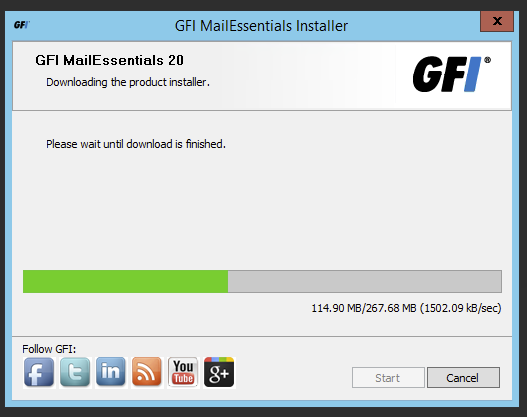
Run the GFI MailEssentials installer which will download the proper installation package.
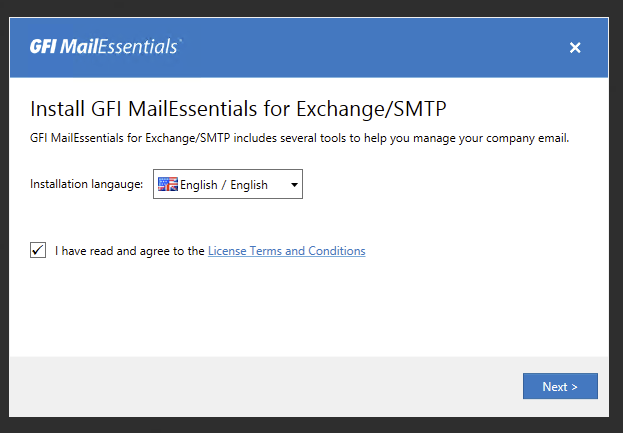
Accept License Terms and Conditions, choose language and proceed by pressing Next
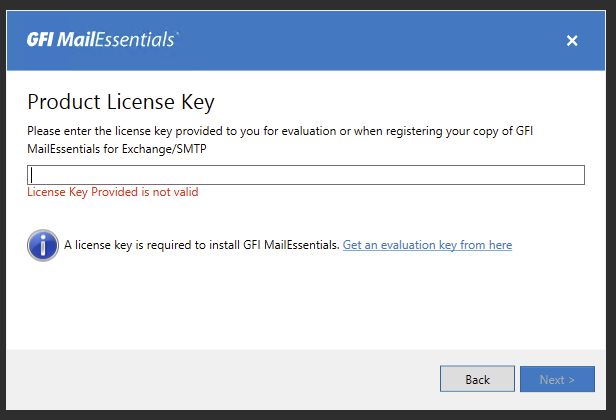
Enter product key and press Next
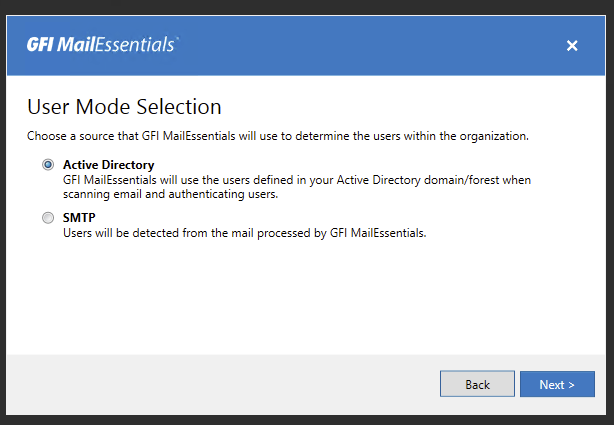
Choose User Mode Selection **Active Directory **and press Next
Enter administrators email
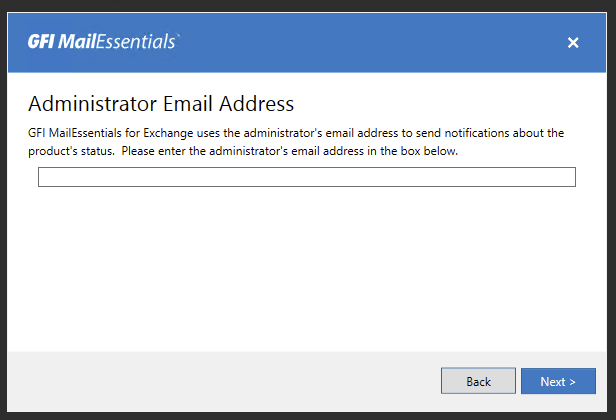
GFI MailEssentials Installer doesn't go thru **Next. **Going back, changing settings, all is working but no further action is allowed.
🛠️ Solution
Turns out UAC (User Access Control) is at fault here. To make sure the installation works fine and without problems make sure to start installation via Run as Admin option. You have to do that even if UAC is disabled via other means. While in Windows 7 and other client systems UAC can be modified thru GUI, in Windows Server systems changing this works only partially sometimes leaving you wondering what is happening.
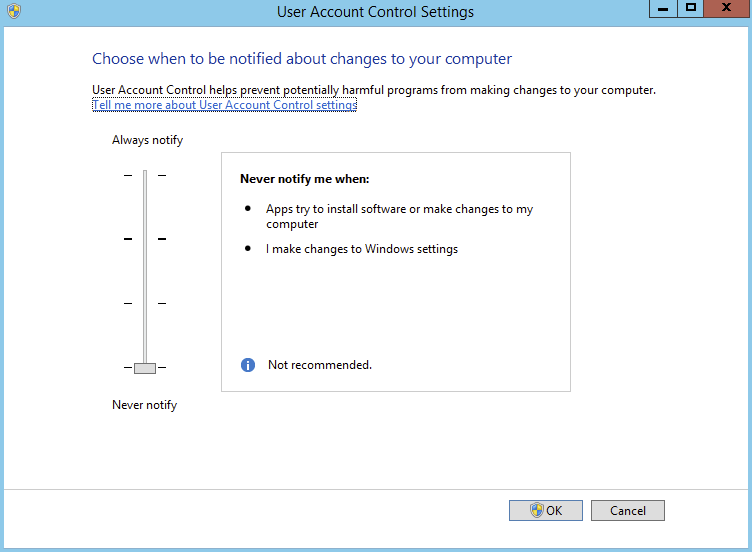
To fully disable UAC one can do this via Registry or via Local Policies interface.
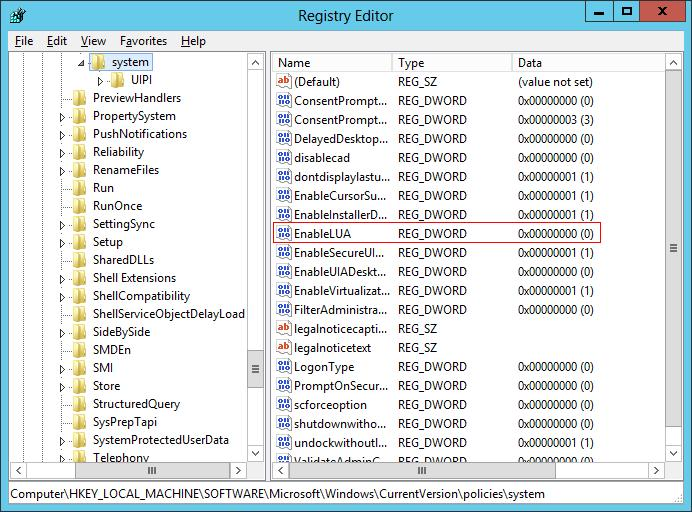
Option 1. You have the option to turn off UAC via registry by changing the DWORD “EnableLUA” from 1 to 0 in “HKEY_LOCAL_MACHINE\SOFTWARE\Microsoft\Windows\CurrentVersion\policies\system”, and doing system reboot.
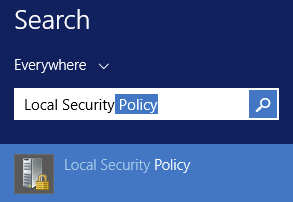
Option 2. Opening **Local Security Policy **(**secpol.msc) **and changing **User Account Control: Behavior of the elevation prompt **to Elevate without Prompting.
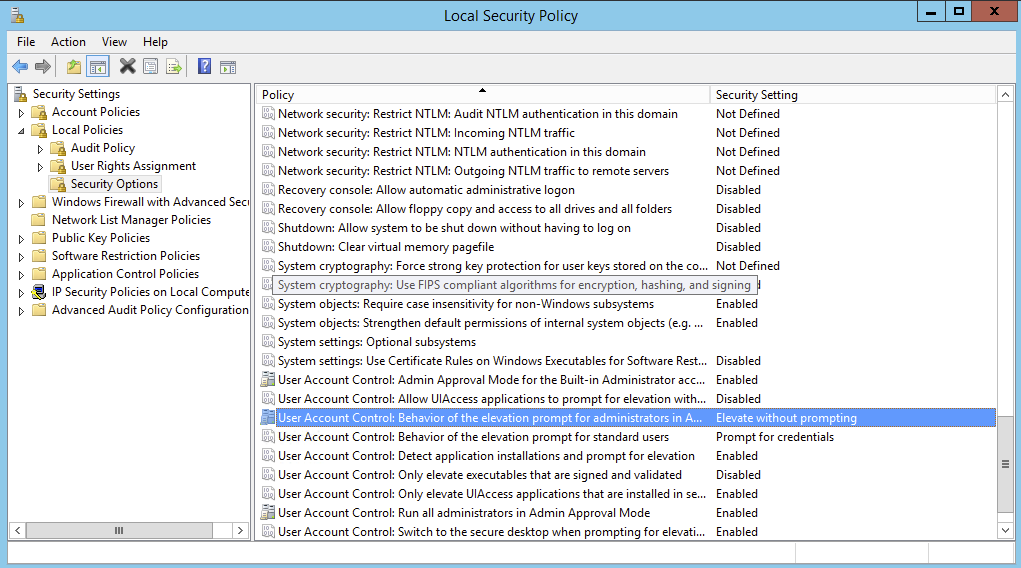
However even with those 2 settings being in place it's still possible the installation will not go as planned. So it's always good to make sure **Run As Admin **option is selected when running any kind of installer.
📝 Notes
This problem has been reported to GFI support and hopefully they will fix this issue in next releases of their installer. It's always good to try this option when everything else fails for any products installation including Microsoft Exchange patches, as it does come handy from time to time.